
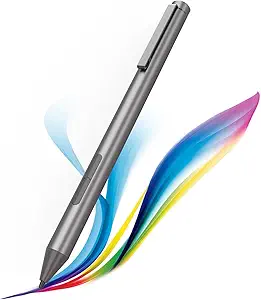
Changing Surface Pen – Active Stylus: A Comprehensive Guide to Upgrading Your Writing and Drawing Experience
The Surface Pen has become a crucial tool for Microsoft Surface device users, transforming the way we interact with our tablets and laptops. Whether you’re a digital artist, a note-taker, or a professional looking to enhance your productivity, the Surface Pen or any compatible active stylus offers a precision and versatility that regular fingers just can’t match. However, like all tech accessories, the Surface Pen eventually needs an upgrade, whether due to wear and tear, battery depletion, or simply wanting to switch to a newer model with more features.
In this guide, we’ll walk through why and when you should consider changing your Surface Pen, how to choose the best replacement, and the benefits of upgrading to a newer active stylus. Let’s dive into the details!
Why Should You Change Your Surface Pen or Active Stylus?
The Surface Pen is one of the most powerful and versatile tools for Surface device users, but like any tech accessory, it can wear out or become outdated over time. Here are some of the common reasons you might want to change your Surface Pen:
1. Pen Battery Life Has Depleted
The Surface Pen runs on a AAA battery or a rechargeable battery (depending on the model). Over time, the battery life will decrease, causing the pen to lose its charge faster or stop working altogether. If your pen no longer holds a charge or doesn’t work consistently, it may be time to replace the battery or switch to a newer model with longer battery life or wireless charging.
2. Damaged or Worn-out Tip
The pen tip on your Surface Pen is one of the most frequently used parts, and over time, it can become worn down. A worn-out tip can cause decreased accuracy, make your handwriting feel rough, or cause uneven pressure sensitivity. If your pen tip is damaged or feels too soft, it can negatively affect your experience, so replacing it is a good idea.
- Replaceable tips: Surface Pens typically come with replaceable tips, so if yours is worn out, you can simply change the tip instead of replacing the whole pen.
- Different tip types: Some newer models offer different pen tips (e.g., harder, softer, or precision tips) to cater to your unique needs.
3. Inconsistent Performance
Another reason to change your Surface Pen is inconsistent performance. This might include the pen not registering touches, jittering while writing, or issues with pressure sensitivity. In such cases, replacing the pen entirely may be necessary, especially if the issues are hardware-related and cannot be fixed by resetting the pen or replacing the battery.
4. Upgrading to a Newer Model with More Features
Microsoft regularly releases updated versions of the Surface Pen, each with more advanced features such as tilt sensitivity, higher pressure sensitivity, USB-C charging, and greater precision. If you’re looking to improve your experience or gain new functionality, upgrading to a newer model might be the right choice.
5. Lost or Misplaced Pen
If your Surface Pen has gone missing or been accidentally damaged beyond repair, you’ll need to purchase a replacement. Fortunately, replacing your Surface Pen is a straightforward process, and a variety of models are available for different Surface devices.
Choosing the Right Replacement Surface Pen or Active Stylus
When it comes to replacing your Surface Pen or upgrading to a new active stylus, there are several factors you should consider. Here’s how to choose the right one for your needs:
1. Compatibility with Your Surface Device
The first and most important factor is compatibility. Not all Surface Pens work with every Surface device. Microsoft has designed several generations of the Surface Pen, with slight differences in features and performance. Here’s a breakdown of what to look for:
- Surface Pen (1st, 2nd, and 3rd Gen): The older Surface Pens were compatible with earlier Surface devices like the Surface Pro 3, Surface Pro 4, and Surface Book.
- Surface Pen (4th Gen and later): These versions are optimized for Surface Pro 5 (2017), Surface Pro 6, Surface Pro 7, Surface Pro 7+, Surface Laptop, and newer devices.
- Surface Slim Pen and Slim Pen 2: These newer pens are compatible with the latest models, such as the Surface Pro 8, Surface Laptop 4, and Surface Duo. They also feature magnetic attachment and wireless charging.
- Surface Go Pen: If you own a Surface Go or Surface Go 2, you’ll need a compatible Surface Pen for Go.
To ensure you’re choosing the right pen, check your device’s model and confirm that the pen is listed as compatible with it.
2. Features and Functionality
Surface Pens come with a variety of features designed to improve your digital writing or drawing experience. Here are some key features to look out for:
- Pressure Sensitivity: The more pressure levels a pen has, the more responsive it will be to your hand movements, which is crucial for drawing, shading, or writing in fine detail. Look for pens with 4096 levels of pressure sensitivity or higher for the most natural writing experience.
- Tilt Sensitivity: If you’re an artist or someone who uses the pen for sketching, tilt sensitivity is essential. It allows you to angle the pen for shading and drawing, mimicking how you would use a traditional pencil or brush.
- Eraser Functionality: Many Surface Pens come with a built-in eraser on the back. This can be a great feature for quickly erasing mistakes when writing or drawing.
- Customizable Buttons: Some Surface Pens have programmable buttons that can be set to different functions (e.g., right-click, copy, paste, etc.), providing more control and efficiency.
3. Battery Type: Replaceable vs. Rechargeable
There are two main types of pens when it comes to power: replaceable battery models and rechargeable pens.
- Replaceable Battery Pens: Some Surface Pens (like the older versions) use a standard AAA battery. These are simple to replace but can be less convenient if you need to keep changing batteries frequently.
- Rechargeable Pens: Newer Surface Pens, such as the Surface Slim Pen 2, offer rechargeable batteries that can be charged using a USB-C connection or by placing them on a magnetic charging dock. These are typically more convenient and eco-friendly since they don’t require constant battery replacements.
4. Form Factor and Ergonomics
Consider how the pen feels in your hand, especially if you plan to use it for extended periods. Some pens have a thicker, more ergonomic design to improve comfort, while others are slimmer and lighter for portability.
- Slim Pens: Great for those who prefer a lightweight, sleek design.
- Larger, ergonomic designs: Better for those who use the pen for longer periods and need added comfort and grip.
5. Price
The price of a Surface Pen or compatible active stylus varies depending on the model and features. While the original Surface Pen may be more affordable, the latest versions like the Surface Slim Pen 2 or Surface Pen for Surface Laptop Studio come with advanced features like haptic feedback, magnetic charging, and enhanced pressure sensitivity, which might make them more expensive.
Look for a pen that fits your budget and offers the features you’ll need.
Top Surface Pen Models and Active Stylus Options
- Surface Pen (4th Gen): A great all-rounder with 4096 levels of pressure sensitivity and tilt support. This version is compatible with Surface Pro 4, 5, 6, and 7, as well as Surface Laptop 1, 2, and 3.
- Surface Slim Pen 2: The newest iteration with haptic feedback, USB-C charging, and magnetic attachment. It’s perfect for the latest Surface devices like the Surface Pro 8, Surface Laptop Studio, and Surface Duo.
- Surface Pen (1st and 2nd Gen): Ideal for users of older Surface devices. These models have the basic functionality you need with pressure sensitivity and side buttons but lack some of the advanced features of newer pens.
- Wacom Bamboo Ink: A third-party option that works well with Surface devices. This active stylus is known for its precision and compatibility with a variety of devices.
- XP-Pen Deco Mini 7: Another third-party stylus, this one offers battery-free technology and a responsive design for drawing and note-taking.
Upgrading or changing your Surface Pen is a great way to improve your experience with your Surface device, whether you’re a professional, student, or creative. By considering compatibility, features, and budget, you can select the best active stylus that meets your needs. Whether it’s for drawing, note-taking, or just enhancing your productivity, a new pen can help you get the most out of your Microsoft Surface device.